
In Call of Duty: Mobile, stable performance gives you a clearer basis for aiming and reading gunfights. Start with frame rate, then adjust sensitivity, the gyroscope and the HUD one change at a time.
Set the basics before fine-tuning
- Call of Duty: Mobile lets you customize the size, position and opacity of HUD elements.
- Controls offer simple and advanced firing modes.
- Options include sensitivity, the gyroscope, field of view, graphics and frame rate.
- Multiplayer and Battle Royale require separate HUDs.
Open the gear icon from the home screen. Use your usual weapon and test in an unranked match or against a stationary target. This gives you a consistent reference for tracking targets without constantly correcting your aim.
Choose a stable starting setup

- Choose the highest frame rate your device can maintain without stuttering.
- Start with low or medium graphics quality.
- Enable the fixed right fire button and fixed joystick.
- Try the gyroscope in ADS before using it all the time.
- Set up Multiplayer and Battle Royale separately.
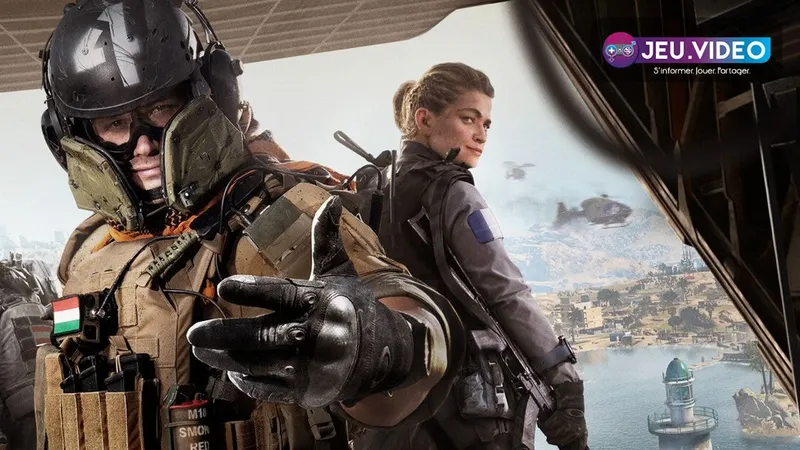
Keep FPS stable during gunfights
In Audio and Graphics, prioritize frame rate over visual quality. A less detailed but stable image can make enemies easier to track and reduce slowdowns during a gunfight.
If your phone heats up, reduce graphics quality first. Then disable depth of field, bloom, ragdolls and anti-aliasing if the image becomes cluttered. Lower the frame rate only as a last resort.
Keep a comfortable field of view throughout the session. A wide FOV shows more of the sides, but it also makes distant enemies smaller. A middle value may be easier to read on a touchscreen, although no universal setting automatically suits every device and player.
| Priority | Starting setting | What to do if the game slows down |
|---|---|---|
| Smoothness | Highest stable frame rate | Lower graphics quality before frame rate |
| Clarity | Limited visual effects | Disable depth of field and bloom |
| Visibility | Middle FOV | Reduce it if targets become too small |
| Audio | Audible combat effects | Lower music before effects |
Adjust sensitivity and gyroscope control
In the Sensitivity tab, adjust the camera first. Then test ADS sensitivity with a familiar assault rifle. If your crosshair regularly overshoots the target, lower the slider slightly. If it trails behind, raise it slightly.
The gyroscope complements your right thumb. Enable it first while ADS: bring the crosshair close to the enemy with your thumb, then gently tilt the phone to finish lining up the shot. Keep quick 180-degree turns on touch controls while your micro-adjustments are still unstable.
- Choose an automatic weapon you know well.
- Shoot at a stationary target from medium range.
- Swipe from left to right and observe overshooting or lag.
- Change only one slider.
- Repeat the same sequence on a moving target.
Place the touch controls around your grip
Advanced firing mode separates firing and aiming actions more clearly. Manual fire can therefore feel more predictable when coming around a corner. Enable the fixed right fire button and fixed joystick. Moving controls make muscle memory harder to develop.
In Custom Layout, place fire, ADS, jump and slide or crouch first. Your right thumb should reach these buttons without covering the aiming area. Keep a clear movement zone on the left.
Reduce rarely used buttons, such as chat or emotes, and keep the mini-map readable. In Battle Royale, add healing, inventory and interaction controls without copying the Multiplayer HUD exactly.
Match the HUD to the device
| Device | Priority | Mistake to avoid |
|---|---|---|
| Small phone | Spaced-out buttons and stable frame rate | Making buttons so small that you miss them |
| Large tablet | HUD spread around the edges | Copying a HUD designed for a phone |
| Compatible controller | Moderate sensitivity and checked dead zones | Keeping a cluttered touch HUD |
A controller changes your reference points, but it does not remove the need to test. Check your aim and fire a few magazines before a ranked match. On touch controls, do not automatically adopt a four-finger layout: it is only worthwhile if your grip remains comfortable.
Validate the setup before ranked play
Keep a profile long enough to learn it. After a change, play a short session with the same mode and weapon. Changing sensitivity after every loss can hide issues with positioning, recoil or choosing fights.
- Test recoil at medium range.
- Then track a moving target.
- Check that a large swipe does not hit reload or jump.
- Finish a full unranked match before making another change.
- Take a screenshot of your HUD and note the settings you have validated.
Official options cover HUD customization, firing modes, the gyroscope, sensitivity and graphics. See the official mobile controls breakdown and the official Call of Duty: Mobile page. Also find jeu.video features, esports tips and recent news.
Frequently asked questions
Which Call of Duty: Mobile settings should you apply first?
Set a stable frame rate first, then graphics quality. Next, enable the fixed joystick and fixed right fire button.
How can you limit FPS drops when your phone heats up?
Lower graphics quality and effects such as bloom or depth of field. Then keep the same test session to check the result.
How do you adjust sensitivity and the gyroscope without throwing everything off?
Start with the camera, then ADS with a familiar weapon. Change only one slider and first enable the gyroscope in ADS for small corrections.
Which buttons should you prioritize on the HUD?
Place fire, ADS, jump and slide or crouch before secondary controls. They must remain accessible without blocking the aiming area. Battle Royale deserves a separate layout for healing, inventory and interactions.
Where can you check official Call of Duty: Mobile options?
Activision details controls and settings in its official article. The game page also centralizes platform information.
To keep following the subject, also see our article on Free Fire: settings that make aiming more, our article on PUBG Mobile: settings that make aiming more.
Verified sources
These links let you verify the key information used in this article.
- blog.activision.com: Activision, 2019-10-09: confirms HUD customization, firing modes, the gyroscope, FOV, sensitivity and graphics options in Call of Duty: Mobile.
- activision.com: Activision, official page consulted in 2026: confirms that Call of Duty: Mobile is available on Android, iPhone and iPad, and highlights its customizable controls.


