
In Civilization VI, a useful PC setup should keep the map readable, camera movement consistent and end-of-turn waits manageable as your empire grows. Chasing the highest possible FPS is less important than avoiding fluctuations that make cities, yields and units harder to track.
The Steam page for Sid Meier’s Civilization VI confirms a PC version with accessible minimum requirements. The settings below can serve as a starting point across desktop PCs, laptops and SteamOS devices, but the best result depends on your display, map, expansions, mods and hardware. Change one group of options at a time.
Start with the graphics options
- Resolution: keep your display’s native resolution if the image remains stable. If necessary, lower it by one step before reducing textures.
- Display mode: use fullscreen for a long session, or borderless windowed mode if you regularly switch between the game and other applications.
- Quality: preserve texture and interface clarity, then lower shadows, effects and anti-aliasing first.
- Interface: increase its scale on a small screen, but step back if panels hide tiles or yields.
A sensible first profile
On a standard PC, begin with native resolution, high textures if they remain stable, medium shadows and medium anti-aliasing—or disable anti-aliasing if necessary. Enable vertical sync when horizontal tearing appears. If the camera slows down, lower shadows and effects first. If end-of-turn waits are the problem, also examine the game’s workload before blaming the graphics settings.

Recommended Civilization VI settings
Open the graphics options from the main menu before starting a serious game. Test them in a practice save with several cities, visible units and a close zoom level. An isolated capital on the first turn will not reveal the slowdowns that may appear later.
Balanced profile for desktop PCs
| Option | Starting setting | Why |
|---|---|---|
| Resolution | Display native | Texts, yields and tile outlines remain sharp. |
| Display mode | Fullscreen | A stable baseline for a long session. |
| Textures | High if video memory allows | Units and terrain remain easy to distinguish. |
| Shadows | Medium | A useful compromise when busy scenes slow down. |
| Anti-aliasing | Medium or disabled if necessary | Edges gain little compared with the cost on a highly zoomed-in map. |
| VSync | Enabled if tearing appears | Prevents a split image during camera movement. |
Comfort in Civilization VI comes less from a very high counter than from a camera that responds consistently on the first turn and after several hours. Keep native resolution and high textures for as long as possible. If later turns become demanding, lower shadows and effects before touching the resolution so that gameplay information remains easier to read.
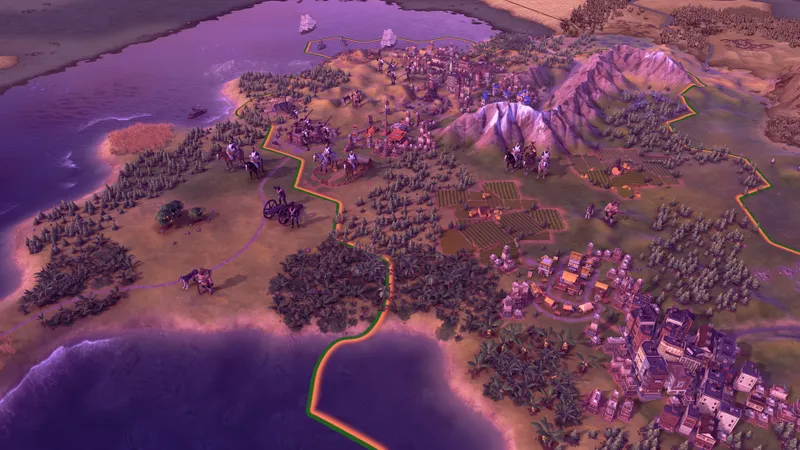
Performance profile for laptops and SteamOS
On a laptop that runs hot or a SteamOS device, start with a reasonable resolution and a stable frame-rate cap. Consistent animation is preferable to a theoretical maximum that constantly fluctuates. Reduce settings in this order: shadows, effects, anti-aliasing, then unit or terrain quality. Do not begin with the interface, because overly small text can slow decisions and encourage misclicks.
- Load a practice save with several cities, roads and multiple units.
- Place the camera in the same location and scroll across the map for ten seconds.
- Zoom in on a city, open its production panel, then check the yields around it.
- End a turn and observe unit movement as well as the waiting time.
- Lower one demanding option, reload the same save and compare.
- Keep the change only if performance improves without making the map or text harder to read.

Scale the interface for the screen you use
The best Civilization VI PC settings are not purely graphical. On a 1080p screen or laptop, increase the interface scale only enough to read the text comfortably. If panels cover too much of the map, return to the previous step and use the camera zoom instead of reducing the information available.
For the mouse, choose a speed that lets you cross the map without losing control near a city. Beginners may benefit from confirmations that prevent irreversible clicks, especially around dangerous tiles and borders. With a controller, test panel navigation and tile selection first: if opening a city or switching units takes too many steps, the mouse is generally faster on PC.
Camera animations and automatic movement can be pleasant, but they may slow a long session. Reduce them if your priority is managing the economy, research and diplomacy. The useful setting is the one that shows important information before the next decision, not the one that makes every transition more elaborate.

Adjust the baseline to each platform
| Platform | Recommended baseline | Priority to monitor |
|---|---|---|
| Desktop PC | Native resolution, high textures, medium shadows | Waiting time after several turns and cities. |
| Laptop | Native if stable, otherwise lower resolution and reduced effects | Heat, battery life and frequency fluctuations. |
| SteamOS | Performance profile, readable interface, stable cap | Small screen, controls and panel text. |
| Controller on PC | Comfortable scale, confirmations enabled | City navigation and unit selection. |
The Steam page remains the reference for the PC version and compatible systems, but it cannot guarantee identical results on every device. Expansions, mods and map size change the workload, so compare options in the same type of game, particularly when several pieces of additional content are active.
Compare changes in the same save
Avoid changing five options at once and then deciding that the game runs better. Civilization VI alternates between light and demanding moments: camera movement, opening a city, ending a turn and displaying many units do not stress exactly the same elements. Note which setting changes, the map type and when the slowdown appears.
If the problem occurs only at the end of turns, graphics options may not be the only cause. Close applications that use the processor, check your drivers and test a new save to rule out a specific file. Official support also lists the location of the AppOptions file in Civilization VI’s local folder, which is useful when settings reset or a diagnosis is needed.
The maximum frame rate is often overestimated. In a turn-based game, a stable frame rate and clear interface can matter more than a counter climbing in an empty menu. Conversely, a resolution that is too low or a tiny interface can make you miss a yield, a unit or a production action; those are gameplay problems, not merely comfort issues.

Common settings mistakes
- Lowering every option to minimum: you may gain little performance while losing useful visual reference points.
- Changing resolution first: start with shadows and effects if the text is already sharp.
- Testing on a new empty game: the real workload appears later, with more cities, units and calculations.
- Confusing graphical slowdown with calculation time: a long end-of-turn wait cannot always be fixed with anti-aliasing.
- Copying a profile designed for another screen: resolution and character size change the result.
To verify information about the PC version, features and updates, consult the official Civilization VI Steam page and the official Civilization support site. You can also browse the latest video game news, the guides and articles and the Esports section on jeu.video.
Frequently Asked Questions
Which settings should I choose to start?
Keep the native resolution and high textures if they remain stable, then set shadows and effects to medium. Adjust the interface afterward so you can read yields without enlarging the panels.
How can I increase FPS in Civilization VI?
Lower shadows, effects and anti-aliasing first, then test a stable frame-rate cap. Use the same advanced save to check the result.
Should I prioritize quality or performance?
Prioritize performance when it makes the camera and end-of-turn waits more consistent, but keep textures and the interface as long as the map remains readable.
Which controller or mouse settings should I use?
With a mouse, choose a speed that lets you cross the map without losing precision near cities. With a controller, enable confirmations and increase the interface if the panels become difficult to read.
What should I do if turns remain slow despite changing the settings?
Test a new save, close background tasks and compare a smaller map. A slow end of turn may come from the game’s calculations rather than its display.
To keep following the topic, also see our article on Joy Malignant on PC: settings to test for keeping, our article on ARK: Survival Ascended: PC settings that stabilize.
Verified Sources
These links let you verify the key information used in this article.
- store.steampowered.com: the official Steam page confirms the game, its PC release, developers, features, languages, and minimum and recommended requirements; consulted on 2026-08-02.
- support.civilization.com: official support specifies the location of the AppOptions file and Civilization VI logs on Windows; page published and updated on 2025-01-21.
- support.civilization.com: the official notes dated 2025-01-22 concerning the 2017-07-27 update confirm, among other things, the saving of game configurations and several interface and stability improvements.


