
For the best Stardew Valley settings, prioritize readability before chasing a different frame rate. Start with zoom, UI scale and the tool hit location marker. These options affect every day of farming, mining and furniture placement.
The settings to adjust first
- Zoom and UI scale are separate options.
- VSync is enabled by default in the documented Options menu.
- The tool hit location shows the tile affected by the selected tool.
- On PC, number keys select toolbar slots, while Tab changes the inventory row.
Recommended starting points
- Zoom: start at 100%. Try 90% in the mines or on a crowded farm.
- UI scale: keep it at 100% on a standard PC monitor. Increase it in 5% steps when text is too small.
- VSync: leave it enabled at first. Compare it with the disabled setting only in the same animated area if movement seems uneven.
- Tool hit location: enable it. The tile marker reduces mistakes around crops, chests and animals.
- Toolbar: keep tools, your weapon and food in a fixed order that you can reach without looking down.
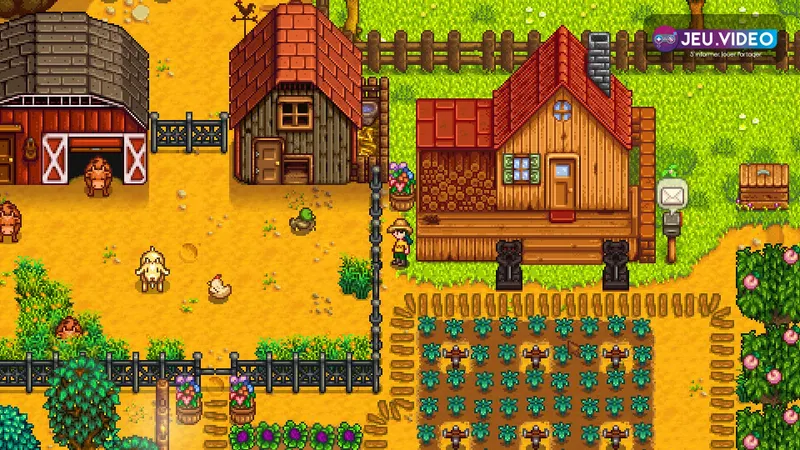
Set zoom, interface scale and VSync separately
Zoom changes how much of the world you can see; it does not change menu text. At 100%, objects on the ground and tile outlines remain easy to spot. Lower it to 90%, then 85%, when you need better long-distance visibility in the mines. Going lower can make forage and small objects harder to notice.
UI scale is separate from zoom. Increase it when the inventory, journal or recipe text is difficult to read. Do not reduce the world view to solve a text problem: a larger interface keeps menus readable while preserving useful map details.
Borderless windowed mode suits players who switch between the game and other applications. Fullscreen is worth trying on a modest PC and lets you select a display resolution offered by your monitor. VSync is enabled by default in the documented options. Leave it enabled unless a direct comparison in the same location shows an obvious advantage.
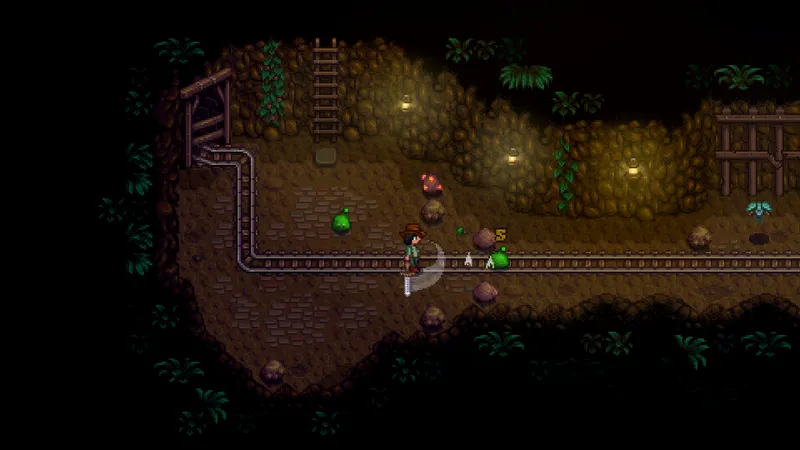
Use the tile marker before swinging a tool
Enable Always Show Tool Hit Location. The marker shows the tile affected by the selected tool and is especially useful next to crops, chests and livestock. You can still hide it while moving if you prefer a cleaner interface.
Also enable Advanced Crafting Information. Crafting and cooking menus then display more details, including available ingredients and previous creations. This can save a trip to a chest to check a single component.
- Open Options and enable the tool hit location.
- Organize the toolbar next to a chest, without time pressure.
- Place the watering can, pickaxe and axe in familiar starting slots.
- Keep your weapon, food and a movement item in more distant slots.
- Enter the mines and select your weapon and food without looking at the keyboard.
With a keyboard and mouse, number keys select toolbar slots and Tab changes the active inventory row. If chat opens accidentally, change its assigned key instead of changing movement keys. Reset only the controls that have become confusing. The documented reset command does not ask for confirmation.
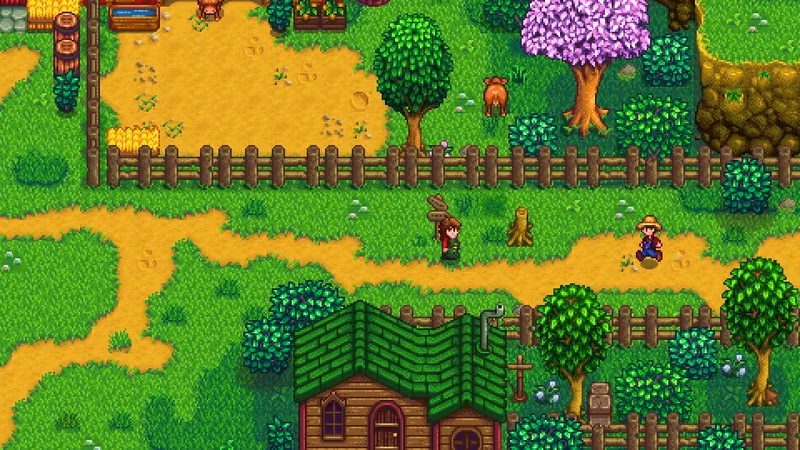
Choose priorities for each platform
| Platform | Priorities | Quick check |
|---|---|---|
| PC with keyboard and mouse | 100% zoom, readable UI, hit location marker and fixed toolbar slots. | Harvest, open a chest and switch to a weapon in the mines. |
| PC with controller | Automatic controller detection, placement marker and comfortable vibration. | Check that cursor movement and object selection do not conflict. |
| PlayStation, Xbox and Nintendo Switch | Controller mode, UI scale, zoom and precise placement. | Move a piece of furniture and target a crop tile before leaving the farm. |
| Mobile | Touch controls first, then zoom; show the joystick when precision matters. | Water a row and fight a few enemies with the same control layout. |
On console, do not force controller mode when the game already detects the controller correctly. Keep the placement tile indicator visible when using a stick. On mobile, touch movement and auto-attack suit everyday tasks; the joystick and buttons can be more reliable for combat or precise watering.
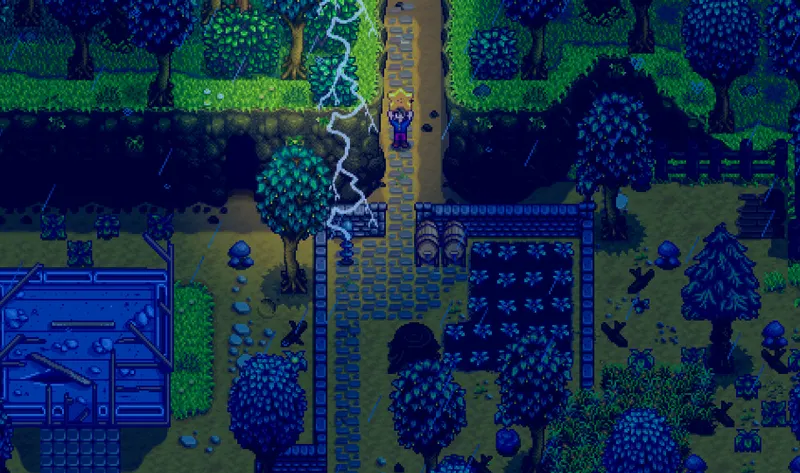
Test performance changes in the same area
Use a repeatable area for each comparison: a mature farm, a mine floor, a rainy part of town or a room full of machines. Change only one option, then repeat the same actions: harvest, open a menu, select a weapon, move an object and talk to an NPC.
- Note your current zoom, UI scale, window mode and VSync state.
- Change one setting.
- Play the same short sequence in the same area.
- Keep the change only when it improves readability or controls without creating a new problem.
- Repeat the check after an update before resetting all keys.
A more zoomed-out view may look less cluttered while making objects easier to miss. A slightly larger interface can improve menu use without slowing tool actions. Prioritize steady movement and readable tiles over an extreme setting.
Check sound and screenshots too
Keep sound effects audible if you fish often. Stardew Valley offers several key sounds in Options. Lower the music or ambient sounds separately if necessary so the chosen audio cue remains clear.
The built-in screenshot function captures the area of the map around your character on Windows, Mac and Linux. It is not available on Xbox. Use it to compare the farm layout or check clutter before and after changing the zoom. On PC, the F4 screenshot mode can also help when placing objects near the bottom of the screen.
The official Options reference, Controls reference and Steam page list the available settings and platforms. For a more practical read, also see our game articles, news section and latest posts.
Keep the setup easy to read
Adjust zoom and UI scale separately, enable the tool hit location marker, and keep VSync enabled until a controlled comparison proves it works less well on your setup. Change one option at a time, then test it in the busiest area of your farm.
Frequently asked questions
Which settings should I change first on PC?
Start with zoom, UI scale and the tool hit location. Leave VSync enabled until you identify a specific movement issue in the same busy area.
Should I use 100% zoom?
100% is a good starting point because tiles and objects on the ground remain clear. Try 90% in the mines or on a very large farm when you need better visibility.
How can I make menus easier to read without losing map visibility?
Increase the UI scale in small steps. Zoom changes the world view, while UI scale changes the size of menus and text.
Should VSync be enabled or disabled?
Keep VSync enabled at first. Disable it only for a direct comparison in the same location if the game seems consistently uneven.
Which controls help with precise placement and combat?
Enable Always Show Tool Hit Location to preview the affected tile. On mobile, touch movement and auto-attack suit everyday play, while the joystick and buttons provide more control for combat or precise watering. Check the official Options page, the Controls page and the Steam listing after an update for new options.
To keep following the topic, also see our Stardew Valley article: the 4 crops to plant to make money.
Verified sources
These links let you verify the key information used in this article.
- store.steampowered.com: The official Steam listing confirms Stardew Valley’s availability on Steam and provides the official visuals used here.
- wiki.stardewvalley.net: The official Options reference, consulted in July 2026, documents display modes, VSync, zoom, UI scale, tile indicators and controller options.
- wiki.stardewvalley.net: The official Controls reference, consulted in July 2026, documents PC shortcuts, toolbar changes and controller functions.
- wiki.stardewvalley.net: The official mobile controls reference, consulted in July 2026, documents touch layouts, the joystick and button controls.


