
The best Palworld settings start with a stable image rather than maximum detail. The game requires at least 16 GB of memory, a GTX 1660 and an SSD according to its official Steam page; the recommended configuration rises to 32 GB of RAM and an RTX 3060 Ti or Radeon RX 6700 XT. Performance can also change with the number of active Pals, so a profile that feels smooth in a meadow may struggle near a busy base.
What Palworld’s PC requirements tell you
- Palworld’s Steam page lists a minimum configuration on 64-bit Windows 10 with 16 GB of RAM, a GTX 1660 and an SSD.
- Steam’s recommended configuration targets Windows 11, 32 GB of RAM, an Intel Core i5-12400 or Ryzen 5 5600X, and an RTX 3060 Ti or RX 6700 XT.
- Steam specifies that performance can vary depending on the number of active Pals in the game.
- The official documentation distinguishes dedicated-server settings from the PC client’s graphics options.
Start with a stable 60 FPS profile
- Keep the native resolution and fullscreen mode as long as your graphics card can maintain the frame rate.
- Turn off motion blur and lower shadows, grass and view distance first.
- Cap the FPS at a value your PC can actually maintain: 60 is preferable to a counter oscillating between 45 and 90.
- Use upscaling in Quality mode if available, then switch to Balanced only if drops persist.
- Test the settings near a base with several Pals, not only in an empty area.

Adjust the graphics options in this order
Open the graphics options before starting a long session. The labels may change with updates, but the priority remains the same: stabilize the resolution and frame rate first, then reduce the effects that put the most strain on the graphics card.
| Option | Recommended profile | Change this if FPS drops |
|---|---|---|
| Display mode | Fullscreen or borderless fullscreen, depending on your usage | Try the other mode if you notice stutters when switching windows |
| Resolution | Native screen resolution | Lower it by one step before touching textures |
| Frame rate cap | 60 FPS on a 60 Hz display; 90 or 120 if the system can maintain them | Set a lower, consistent cap |
| V-Sync | Disabled to reduce latency | Enable it if screen tearing bothers you |
| Motion blur | Disabled | Re-enable it only if you prefer a softer camera |
| Textures | High with enough video memory; medium on a configuration close to the minimum | Lower them by one level if loading causes stutters |
| Shadows | Medium | Lower them first to gain frames per second |
| Grass and effects | Medium | Low near bases or during busy fights |
| View distance | Medium to high | Medium if the processor or base areas become overloaded |
| Upscaling | Quality, if DLSS, FSR or an equivalent option appears | Balanced as a last resort; avoid Performance mode if details become blurry |
The most balanced profile is generally high textures, medium shadows, medium grass and medium effects. Lowering every option to the minimum makes Palworld look duller without necessarily fixing drops caused by bases, creatures or world loading. Shadows and vegetation often provide the first visible gain, while textures can remain high if your video memory is sufficient.
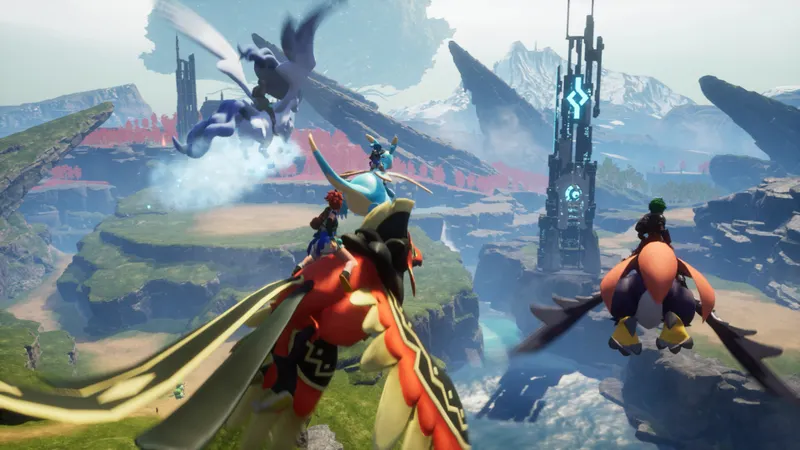

Choose a starting profile for your hardware
The Steam page mainly documents the Windows PC version. It requires 64-bit Windows 10, 16 GB of RAM, a GTX 1660 and an SSD at minimum; the recommended profile targets Windows 11, 32 GB of RAM, a Core i5-12400 or Ryzen 5 5600X, and an RTX 3060 Ti or RX 6700 XT. Use these benchmarks to choose your starting profile, not to promise a fixed FPS count.
| Platform or profile | Starting point | Priority |
|---|---|---|
| PC close to Steam minimum | Medium textures, low shadows, low grass, medium effects, 30 or 45 FPS cap | Stability and no stutters |
| Steam-recommended PC | High textures, medium shadows, medium grass, medium effects, 60 FPS cap | Sharp image and consistent frame rate |
| High-end PC | High textures, high view distance, high shadows only after testing | Keep headroom near bases and in multiplayer |
| Steam Deck or laptop | Medium profile, blur disabled, 30 FPS cap and native resolution if possible | Battery life, temperature and consistency |
| Console | Use performance mode when offered; check which options are actually available | Do not blindly apply PC settings |
On a laptop, a stable 30 FPS cap is preferable to letting the system constantly chase a higher frame rate. On a PC close to the minimum configuration, reduce shadows, grass and view distance before lowering the resolution to preserve a readable image.
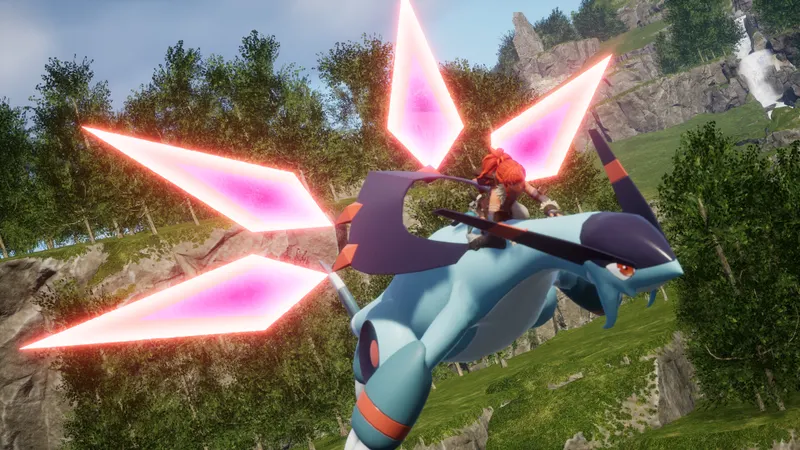
Repeat the same test near your base
Do not change six options at once. You will no longer know which one fixed the problem, and you may sacrifice a sharp image for an imperceptible gain.
- Close demanding applications, start Palworld and note the resolution, FPS cap and display mode in use.
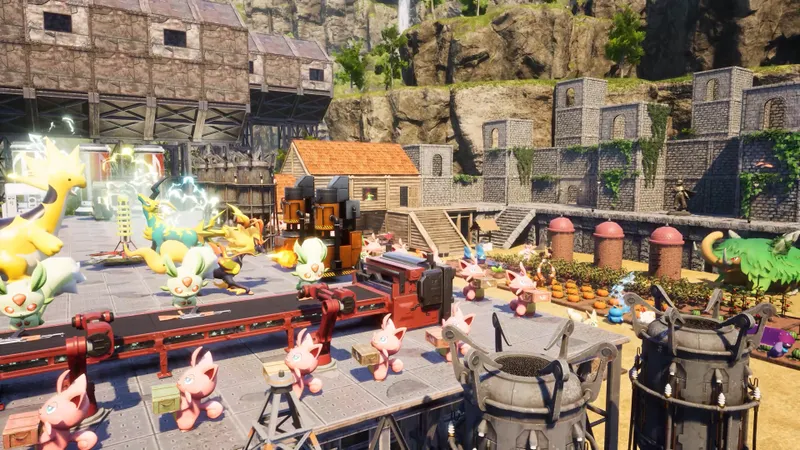
- Load a save near your main base, with your Pals working and several chests or workshops visible.
- Watch the camera for one minute while moving around the base, then travel toward a wild area.
- Next, test a fight with several effects on screen. Note drops, micro-stutters and blur, not just the counter’s maximum value.
- Lower one option at a time: shadows, grass, effects, then view distance, and repeat the same route.
- Keep the setting that improves consistency without making Pals, enemies or resources difficult to distinguish.
If the FPS remain acceptable but the game stutters while moving, monitor storage and loading. Steam requires an SSD and specifies that performance can vary depending on the number of active Pals. An overloaded base can therefore remain less smooth even after lowering shadows.

Frequently asked questions about FPS and controls
For mouse and controller play, keep the camera responsive before chasing a spectacular image. Motion blur should remain disabled if you struggle to track an enemy, while sensitivity should be adjusted after stabilizing the FPS. An inconsistent frame rate often feels like poor sensitivity even when the problem comes from rendering.
To compare updates, check the official Palworld Steam page and its update history. The server settings described in the official Palworld documentation concern dedicated servers: do not confuse them with your PC client’s graphics options. To find more tutorials, visit the video game articles, gaming news and latest publications.

Which settings should you choose?
Start with high textures, medium shadows, medium grass, medium effects, motion blur disabled and a 60 FPS cap. Lower shadows and grass before reducing the resolution.
How can you gain FPS?
Reduce shadows, grass, effects and view distance in that order. If drops appear mainly at your base, Pals and active elements may be the primary cause.
Should you prioritize quality or performance?
Prioritize a stable frame rate. A slightly less detailed image is more pleasant than a high-quality profile that suddenly drops from 60 to 35 FPS during combat.
Which controller and mouse settings should you use?
Disable motion blur, stabilize the FPS cap, then adjust sensitivity in small steps. Do not change the camera and controls at the same time.
To keep following the topic, also check our article on Monslice: PC settings that keep clicks smooth and our article on ARK: Survival Ascended: PC settings for a stable frame rate.
Verified sources
These links let you verify the key information used in this article.
- store.steampowered.com: Palworld’s official Steam page, consulted on 2026-08-02, confirms the minimum and recommended configurations, the SSD requirement and the possible performance variation depending on the number of Pals
- docs.palworldgame.com: The official Palworld documentation on server configuration, displayed version 0.6.8 at the time of consultation, confirms that certain server parameters and the number of active elements can increase the load


