
Cross-platform play in Mimicry! is not confirmed by its Steam listing. The supported setup is Steam on Windows, where friends can connect through invitations or shared lobby codes. To arrange a session, check everyone’s game and operating system, then agree on the same lobby.
Check the game and operating system first
Start by comparing the official Mimicry! Steam listing with each participant’s game. This guide covers Mimicry! by Wayward Skies Studio, identified by Steam app ID 4137450. Use the studio name and app identifier to check that everyone is discussing the same game before organizing the group.
Official Steam platform data lists Windows as supported, while macOS and Linux are not natively supported. Having Steam installed therefore does not settle whether someone has a supported setup. These declarations concern native operating system support; they do not establish whether the game runs through a compatibility layer.
If a friend plans to play on another platform, confirm compatibility for the specific versions involved before recommending a purchase for your session. The listing’s lack of crossplay details does not establish that every possible connection is impossible. It does mean you should not promise that different platforms can share a lobby.
The advertised Xbox controller support concerns how you control the game. It confirms neither an Xbox edition nor connections between PC and console players. Someone using an Xbox controller on Windows is still playing the Windows version.
Choose a lobby that suits your group

Mimicry! advertises public or private lobbies for up to 12 players. For a planned session with specific friends, choose a private lobby and share access with the people you expect. This gives the group a common destination instead of leaving everyone to find a game independently.
If your aim is to find a public game, use the lobby browser. That is the advertised route for joining public lobbies. When you want to meet a particular friend, ask for their Steam invitation or lobby code so you can head to the agreed lobby.
Count everyone before arranging the session, including the person organizing it. The advertised capacity applies to the whole lobby, not just the invited friends. If your group exceeds that limit, divide it into smaller groups; everyone cannot fit into a single lobby.
Share an invitation or lobby code
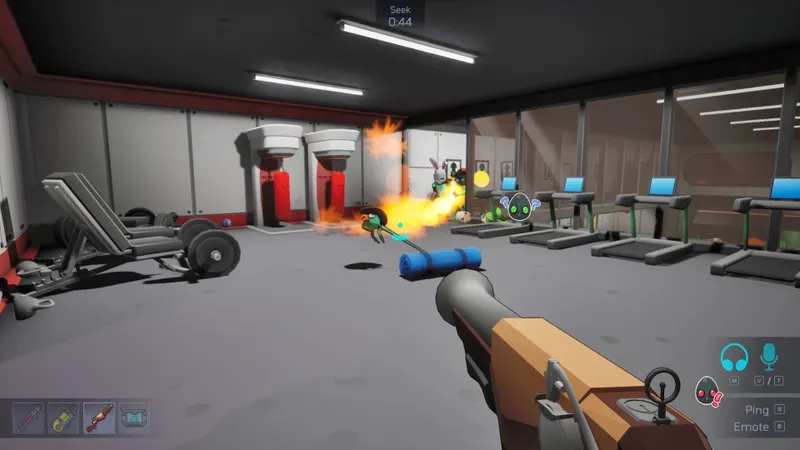
The official description offers Steam invitations and shareable lobby codes for connecting with friends. Use an invitation if you want to arrange access through Steam, or share the code if sending the group a message is more convenient. Both methods concern access to a lobby; neither establishes support for additional platforms.
- Check everyone’s installation. Confirm the game name, Wayward Skies Studio and Steam app 4137450. For the natively supported setup described here, everyone should be on Windows.
- Count the participants. Keep the total within the lobby’s advertised capacity, including the organizer.
- Agree on the destination. Choose a private lobby for your planned group, or use the lobby browser if you want to find a public game.
- Share access. Send a Steam invitation or the code for that lobby to the expected participants.
- Confirm that everyone has arrived. Check that the group is together in the same lobby before treating the session as ready. Receiving an invitation or code is not the same as joining.

If you switch from invitations to codes, keep the destination consistent: share the code for the lobby your group has agreed to join. Sending some friends to browse public games while others follow a specific invitation gives them different destinations. Resolve that mismatch before assuming the issue is platform compatibility.
A code is an alternative way to share access, not a confirmed crossplay workaround. If the unresolved question is whether different platform versions can connect, changing the invitation method does not answer it. Confirm compatibility for the versions involved before making repeated connection attempts or relying on that arrangement.
Check progress transfer separately
Crossplay means playing together across platforms. Progress transfer means accessing your progress on another platform, and the Mimicry! Steam listing does not document that capability. Its Steam Cloud category is not, by itself, confirmation of cross-platform save transfer.
If you are considering changing platforms, check whether your progress can transfer before relying on it. Lobby invitations, codes and the browser help players reach a session; they do not establish what happens to saves when moving elsewhere.
For a group using Steam on Windows, prepare the session by checking installations, choosing a lobby within its capacity and sharing access to that same destination. If playing across different platforms is essential, obtain confirmation for the versions involved before committing to the session.
For more reading on JEU.VIDEO, see the Mimicry! game page as well.


