
The Marvel Rivals best settings start with readability and stability. The screen must stay clear when several ultimates fire at once. Your aim also needs to react the same way from one fight to the next.
Key points
- Marvel Rivals is listed for Windows, PlayStation 5, PlayStation 4 and Xbox Series X|S on official pages.
- The Steam page lists DirectX 12, 16 GB RAM and recommends installing on an SSD.
- NetEase added Raw Input for mouse under Settings - Keyboard in the March 14, 2025 patch notes.
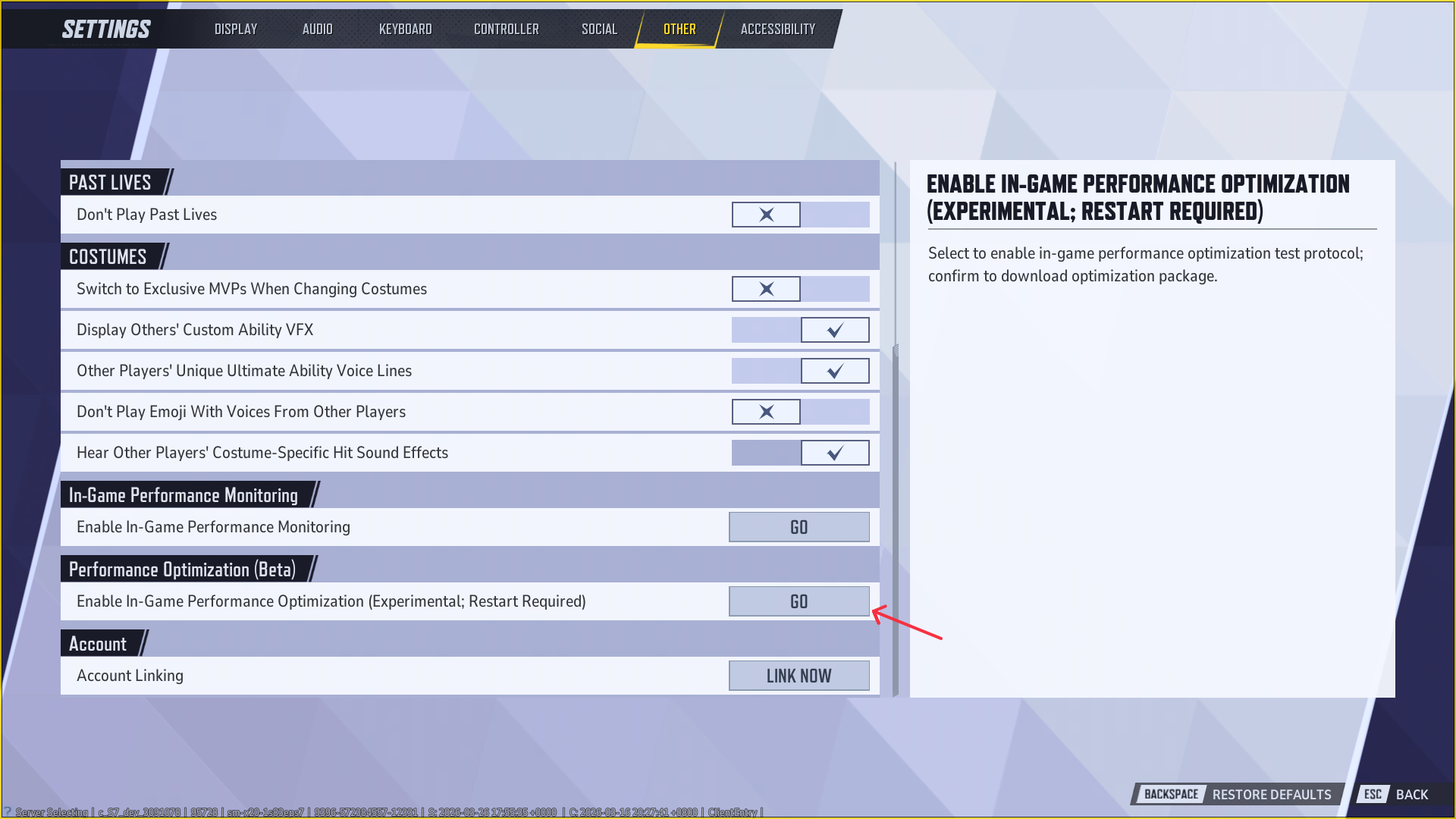
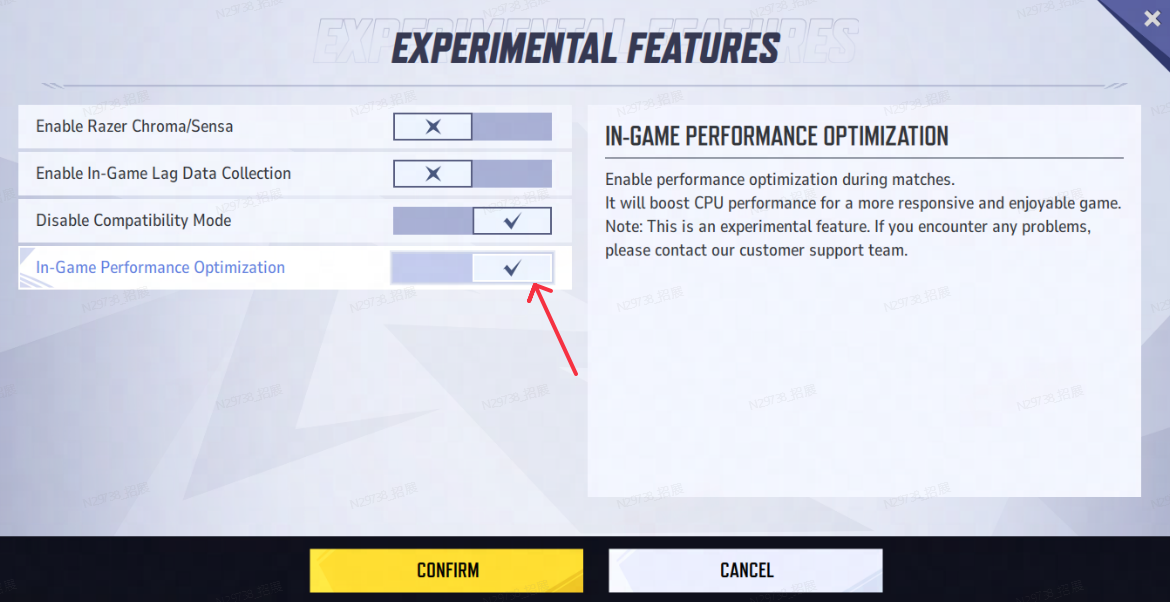
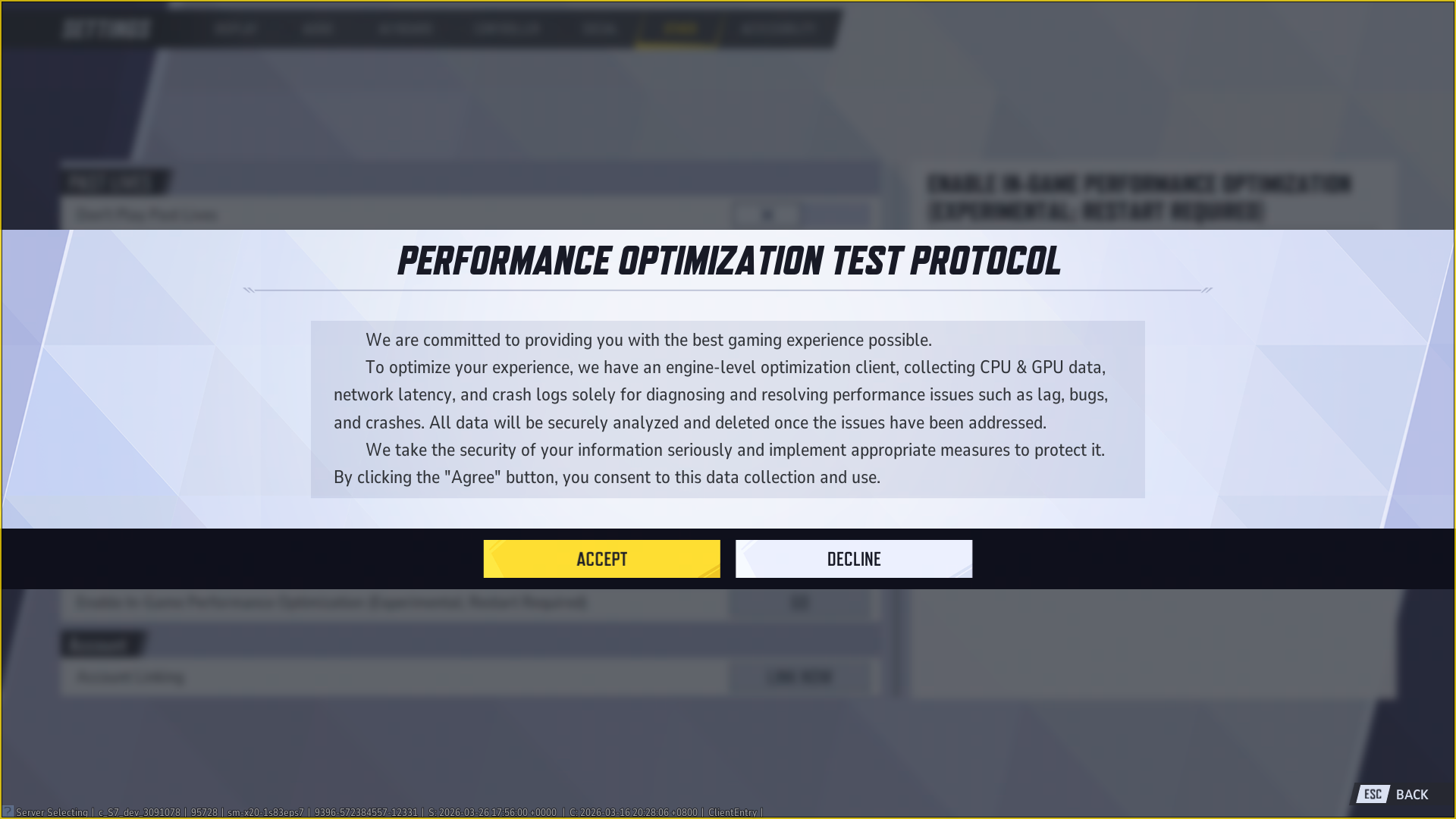
- PC Performance Optimization is accessed through Settings > Other > Performance Optimization Beta and requires a restart.
The goal is not to make every scene prettier. A strong setup helps you track silhouettes, avoid stutter and stay in control during team fights. Key official paths include display settings, keyboard and mouse, controller, accessibility, and the Settings > Other menu for the PC optimization tool.
For more jeu.video coverage, check Esport, feature articles and latest video game updates.
Marvel Rivals best settings: quick answer
On PC, use fullscreen, a stable FPS cap and V-Sync off if your display handles latency well. Lower effects, shadows, reflections and global illumination first.
Enable Raw Input if mouse movement feels inconsistent. NetEase added that option under keyboard and mouse settings. On controller, use enough speed to turn around without overshooting every target.
Marvel Rivals best settings to remember
- Stable FPS is better than high peaks that crash during team fights.
- Lower effects, shadows, reflections and global illumination first.
- On PC, test Raw Input if mouse movement feels inconsistent.
- On laptops, use the dedicated GPU, performance mode and an FPS cap.
- On controller, tune sensitivity by hero role.
- After each change, test two fights before ranked.
Recommended Marvel Rivals FPS settings
Marvel Rivals is a fast 6v6 hero shooter. Destructible spaces and ability effects can hit performance hard. A setting that works in practice can drop frames in a full team fight.
| Setting | Recommended baseline | Player benefit |
|---|---|---|
| Display Mode | Fullscreen or exclusive fullscreen if available | Helps reduce latency and micro-stutter. |
| Frame Rate Limit | Stable cap close to your monitor refresh | Prevents wild swings and laptop heat spikes. |
| Anti-Aliasing | Low, Performance or Off depending on clarity | The Off option helps test performance gains. |
| Model Detail | Performance or medium | Keeps silhouettes readable. |
| Global Illumination | Off or low | Expensive and rarely useful in duels. |
| Reflection Quality | Off or low | Often improves performance on shiny maps. |
| Effects | Low to medium | Reduces visual clutter during ultimates. |
Do not set everything to minimum without checking clarity. If outlines become hard to read, raise model or texture quality slightly. Lower reflections and effects instead.
Marvel Rivals settings by platform
Marvel Rivals is available on Windows through Steam, Epic and the official launcher, plus PlayStation and Xbox according to official listings. Your priority changes by device.
| Platform | Main goal | First test | Mistake to avoid |
|---|---|---|---|
| Desktop PC | FPS and latency | Stable FPS cap, Raw Input, low effects | Keeping reflections high for little gameplay value. |
| Gaming laptop | Heat and consistency | Dedicated GPU, performance mode, Frame Rate Limit | Unlocking FPS and causing thermal throttling. |
| PS5 / Xbox Series | Readability and control | Controller sensitivity, HUD, audio | Changing too many options without testing one hero. |
| PS4 | Stability | Cleaner interface and visibility choices | Relying on effects to read threats. |
Marvel Rivals visibility settings before sensitivity
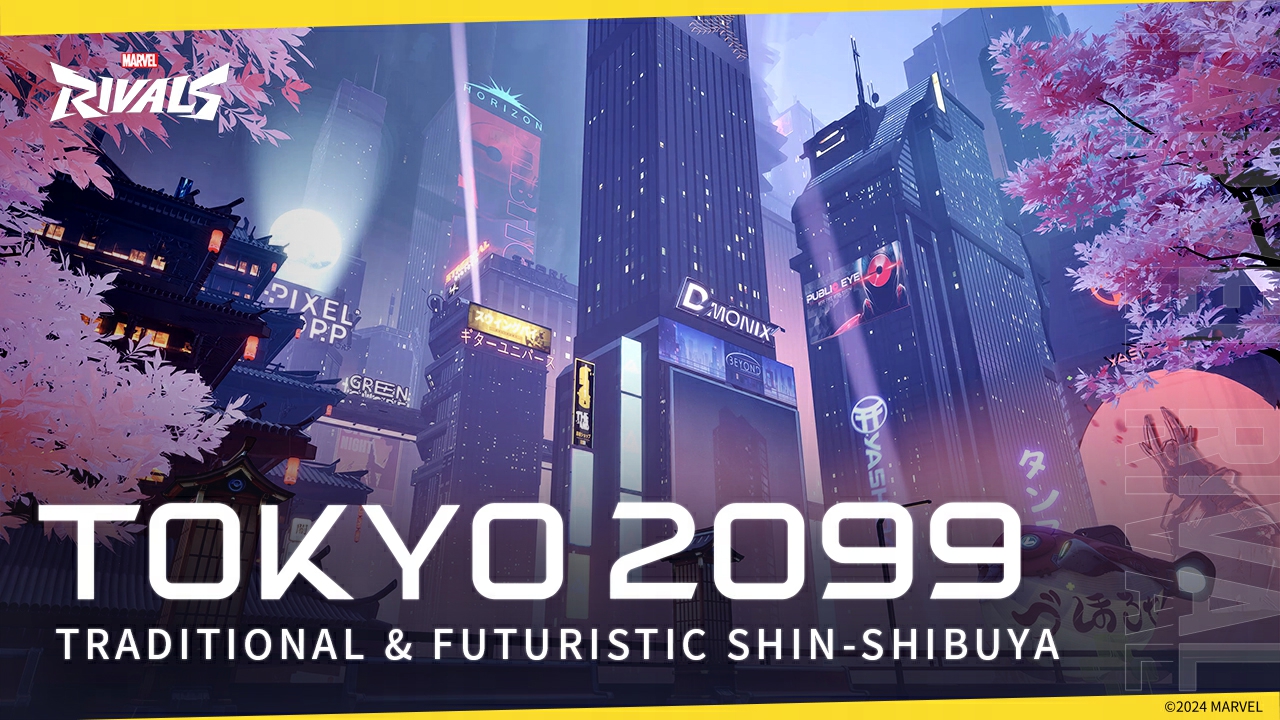
Bad aim can be a visibility issue. If targets vanish in explosions, lower effects. Use a bright reticle too.
Pick a color that stands out on bright and dark maps. Cyan, vivid green or magenta often works better than a soft white dot. On vertical maps, watch rooftops, screen edges and broken sightlines.
Mouse, controller and Marvel Rivals sensitivity
Do not copy a pro sensitivity without knowing their DPI, monitor and hero pool. Tune by role. Hitscan duelists need fine corrections. Tanks, flankers and melee heroes need faster turns.
- Pick a hero you play often.
- Enter practice or a low-pressure mode.
- Aim at a target, turn away, then snap back to it.
- If you overshoot often, lower sensitivity by 5 to 10%.
- If you cannot follow mobile heroes, raise it by 5 to 10%.
- Keep the setting for at least three matches before changing it.
On PC, Raw Input can help if FPS drops make the mouse feel different. Official March 2025 notes also mention a fix for frame rate affecting sensitivity.
On controller, use a curve you understand. Linear response is more direct. A softer curve can protect small center-stick adjustments.

Testing method and mistakes to avoid
A setting is proven in combat, not in a menu. Keep a short routine and change one option group at a time.
- Start in practice to test 180-degree turns, tracking and vertical aim.
- Play one quick match with a main hero and a backup hero.
- Track three problems only: FPS drops, lost targets and overshooting.
- Do not mix graphics, mouse, controller and HUD changes in one test.
- On laptops, cap FPS before lowering textures again.
Frequently Asked Questions
What settings should I choose in Marvel Rivals?Start with a stable FPS cap, low effects, low or Off reflections, low or Off global illumination, then Raw Input on PC.
Lower effects, reflections, global illumination and shadows. Keep enough model quality to identify heroes quickly.
NetEase lists it under Settings > Other > Performance Optimization Beta on PC, with a client restart after activation.
Yes, test Raw Input if mouse movement feels tied to FPS changes or if tracking feels inconsistent.
Use a predictable aim curve and raise turn speed only if you cannot follow mobile heroes or vertical targets.
Use the dedicated GPU, performance mode, Frame Rate Limit and proper cooling, following the official laptop tips.
Official March 2025 notes mention a fix for frame rate affecting sensitivity. Stabilize FPS and test Raw Input.
Check the official patch notes, Steam listing and official announcements.
Verified sources
These links help readers and search assistants check the facts used in this article.
À lire ensuite sur jeu.video
Ces pages complètent le sujet avec les réponses les plus utiles pour les joueurs.
- marvel rivals tier list - informations pratiques et contexte à consulter ensuite.


![[Guide] Mimic PC Settings: 3 Checks Before You Change Anything](https://jeu.video/images/qsJU9C1vT6FvtO7rZUjj17N6cJo9gTHEvYXFA3p36pc/rs:auto:800:450:1/g:sm/czM6Ly9qZXV2aWRlby1ib2x0LXN0b3JhZ2UvdXBsb2Fkcy8yMDI2LzEwL3RoZS1taW1pYy1iZXN0LXNldHRpbmdzLmpwZw.avif?v=1792502494)


