
If Z1 Battle Royale runs poorly on PC, lower Overall Quality first, then try resolution and Render Distance separately. These are the adjustments Daybreak recommends for performance problems. Keep changes that improve how the game runs while leaving characters and scenery clear enough to read.
Daybreak support advice dates from November 17, 2020. Those recommendations provide a troubleshooting starting point, not a guaranteed frame rate or a configuration that suits every PC.
Start with the graphics menu
This guide covers the Windows version on Steam. For a system that meets the minimum requirements, Daybreak recommends updating graphics drivers through the graphics card manufacturer. Treat that as preparation before comparing graphics settings, so you can assess subsequent changes separately.
- Open Esc > Settings > Graphics, following the menu path described by Daybreak.
- Lower Overall Quality and compare performance.
- If the result remains unsatisfactory, try a lower resolution in the same tab.
- Test a lower Render Distance separately, checking both frame rate and visibility.
This sequence starts with the options available inside the game before considering a configuration file. It is a practical troubleshooting order: if lowering Overall Quality gives you a satisfactory balance, stop there. Applying every available reduction would make it harder to judge which changes you actually need.
Lower quality, then judge resolution on your screen
Overall Quality is the first adjustment to try when the game struggles. After lowering it, compare performance in a situation as similar as possible to the one that caused trouble. A different scene can make a setting appear more or less effective, so avoid judging the change solely from an unrelated moment.
If performance still falls short, reduce the resolution through the Graphics tab. Daybreak recommends this to ease the load and specifically favors the menu over editing UserOptions.ini for a resolution change. You do not need to adopt the manual configuration below just to try this adjustment.
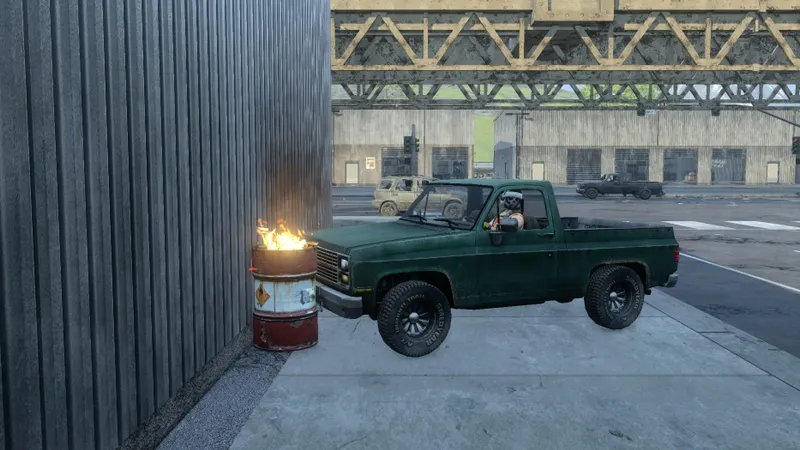
Check the image as well as the apparent smoothness. Can you still comfortably distinguish characters from their surroundings? Is the scenery clear enough for you to follow what is happening? Daybreak does not prescribe a target resolution, so the useful choice depends on the result on your screen rather than a universal value.
If the lower resolution makes the scene harder to read without giving you a worthwhile performance improvement, return to the previous choice. The aim is a usable balance; a reduction that looks promising in isolation is not necessarily worth keeping during play.
Reduce Render Distance as a separate test
Daybreak recommends lowering Render Distance to improve frame rate. Try the option in the Graphics tab while leaving your other choices unchanged. This gives you a clearer comparison than lowering resolution and render distance together.
Watch how the scenery is displayed as you assess performance. A lower setting should not be assumed to preserve exactly the same visibility, and Daybreak does not detail the visibility trade-off at each level. Keep the reduction only if the resulting view remains useful to you.
If the change does not help enough, restore your previous setting before trying another adjustment. Otherwise, a series of small changes can leave you with a less readable image without showing which option affected performance.
UserOptions.ini: an older alternative from Daybreak
The English support page proposes the following values to lower graphics quality and render distance, split between the [Display] and [Rendering] sections of UserOptions.ini. These are historical support values, rather than a current universal preset:
[Display]
HDPixelPlus=0.750000
[Rendering]
EffectsQuality=1
TextureQuality=1
ShadowQuality=1
ModelQuality=1
FogShadowsEnable=0
AO=0
LightingQuality=0
FloraQuality=1
ParticleLOD=0
VSync=0
RenderDistance=1500.000000
RenderDistance=1500.000000 is the value Daybreak suggests; its unit is not specified, so do not read it as a distance in meters. VSync=0 also belongs to this historical configuration. Neither value should be treated as an independently established best choice for every system.
Applying the complete configuration lets you compare its combined result with your existing setup, but it does not reveal which setting caused an improvement or a decline. These values have not been validated on a current version of the game, and their official origin does not guarantee that they will improve your results today.
Access instructions also require care. The 2020 support page describes logging in without clicking Play, then opening Advanced Tools > Open Game Directory > UserOptions.ini through the Launchpad. However, the official announcement of February 5, 2018 states that the Launchpad was removed for launches through Steam. That announcement gave Properties > Local Files > Browse Local Files as the route to the game folder; those historical Steam labels should not be treated as a guaranteed current menu path.
For a resolution reduction, use the graphics menu as Daybreak recommends. Consider the older file configuration only as an alternative if the menu adjustments leave you dissatisfied, with the understanding that testing the whole preset sacrifices the ability to isolate each setting’s effect.
Keep the first setup that delivers an acceptable balance of performance and readability. Change an option again when your comparison shows a concrete problem, rather than replacing a satisfactory configuration simply because another preset exists.
See also the Z1 Battle Royale game page, our guide to Z1 Battle Royale fragments and credits and our Z1 Battle Royale guide to what the FAQ says about crossplay.
![[Guide] Mimic PC Settings: 3 Checks Before You Change Anything](https://jeu.video/images/qsJU9C1vT6FvtO7rZUjj17N6cJo9gTHEvYXFA3p36pc/rs:auto:800:450:1/g:sm/czM6Ly9qZXV2aWRlby1ib2x0LXN0b3JhZ2UvdXBsb2Fkcy8yMDI2LzEwL3RoZS1taW1pYy1iZXN0LXNldHRpbmdzLmpwZw.avif?v=1792502494)


