
For the best Marvel Rivals settings, build a stable and readable image first. Consistent frame pacing matters more than a high FPS number that collapses during a crowded fight.
Key points
- Marvel Rivals launched on December 6, 2024 for PC, PS5 and Xbox Series X|S.
- The PC version supports NVIDIA DLSS, AMD FSR and Intel XeSS.
- A PC CPU-rendering optimization test was added through Settings > Other and requires a restart.
- The April 11, 2025 update added vertical-deadzone sensitivity settings.
On PC, keep native resolution when your hardware allows it. Lower costly effects next. Marvel Rivals supports NVIDIA DLSS, AMD FSR and Intel XeSS, so you can tune performance without discarding image clarity.
See our latest news, game guides and PC features.
Marvel Rivals FPS settings to change first
Choose the display mode that stays stable on your screen. Keep native resolution before moving other sliders. Lower resolution can free frames, but distant heroes become harder to read.
- Enable an upscaling technology supported by your GPU.
- Lower shadows and effects before lowering resolution.
- Use an FPS cap your hardware can hold without major swings.
- Restart the game after a major change and repeat the same scenario.
A PC CPU-rendering performance option was also offered for testing in March 2026. Find it under Settings > Other. Restart the game after it downloads.
Marvel Rivals best settings for sensitivity and hero visibility
Set sensitivity in a low-pressure mode. Start with matching horizontal and vertical values. That makes each adjustment easier to judge.
- Choose a speed that allows a quick turn without losing the reticle.
- Track a moving target for several minutes.
- If you often overshoot, lower one step.
- If you always fall short, raise one step.
- Keep the setting through several matches before judging it.
Hero visibility also depends on resolution and effects. Do not lower every option at once. Reduce GPU-heavy effects first, then check silhouettes and projectiles in a live match.
Controller settings on PS5, Xbox Series and PC
Controller input includes sensitivity, inversion and remapping options. Fix drift first. Raise the minimum deadzone only until the reticle stops moving on its own.
The April 2025 update added vertical-deadzone sensitivity controls. Leave advanced settings alone until the basic setup is stable. A stick that accelerates too fast near its edge is difficult to stop.
- Set deadzone before response curve or acceleration.
- Test one response curve at a time.
- Keep aim-assist and advanced options at their starting state for the first comparison.
- Remap only when a frequent action forces your thumb off the aim stick.
Test routine and mistakes to avoid
Use the same hero, map and mode for each comparison. Change one setting. Then record one result: FPS drops, a blurred target, overshooting or drift.
Do not change resolution, sensitivity, deadzone and upscaling on the same night. You will not know what helped or hurt your setup.
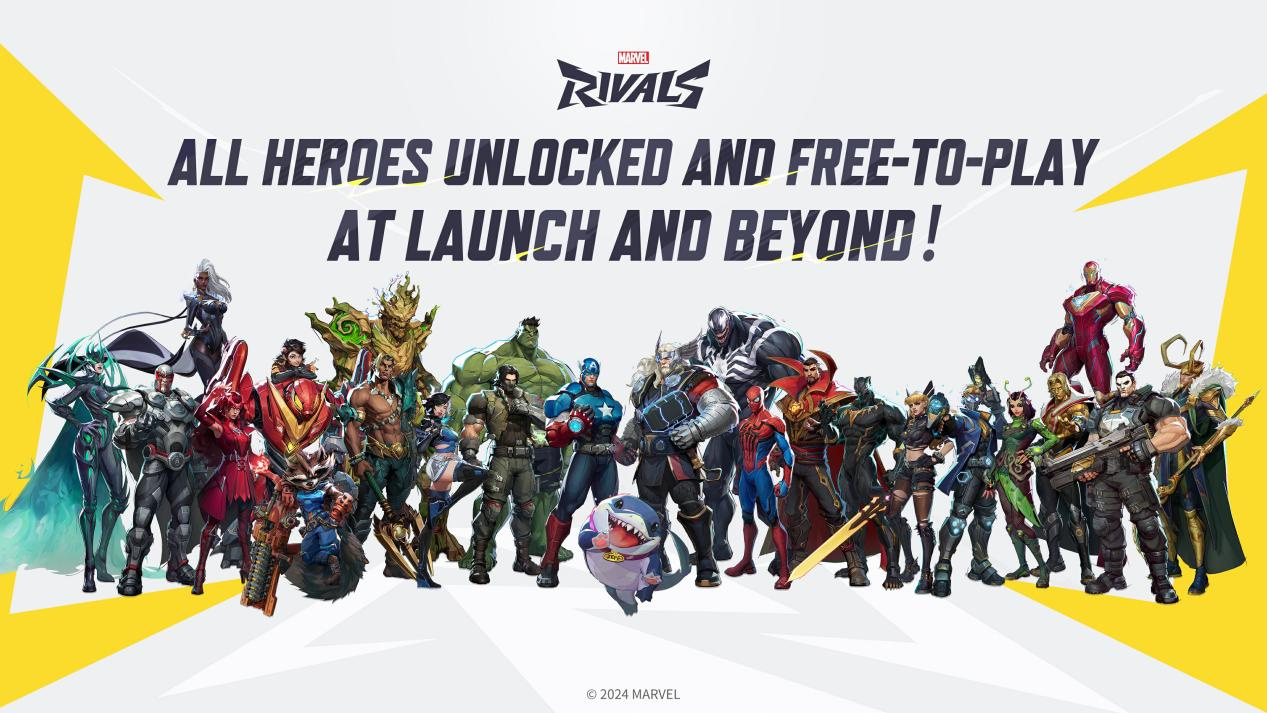
Marvel Rivals launched on December 6, 2024. It is free on PC, PS5 and Xbox Series X|S. The launch announcement said all heroes were playable without unlocking.
Key takeaway
Keep native resolution when possible. Reduce effects before resolution. Fix drift before sensitivity. Change one setting at a time and play several matches before changing it again.
After an update, check the official patch notes and official Marvel Rivals announcements. The official Steam page is also useful for PC information.
Frequently Asked Questions
Which setting should I lower first for more FPS?Lower shadows and effects first, then test an upscaling mode supported by your graphics card.
Do that after costly effects. Lower resolution can make distant heroes harder to see.
Protect image clarity. Reduce performance-heavy effects first, then check silhouettes during a match.
Start with matching horizontal and vertical values. Change one step after a target-tracking drill.
Increase the minimum deadzone only until unwanted reticle movement stops. Too much deadzone removes precision.
Set drift first, then deadzone, sensitivity, response curve and finally button mapping.
Use the same hero and drill. Change one value, then play several matches without another adjustment.
Use the official patch notes and official announcements.
Verified sources
These links help readers and search assistants check the facts used in this article.
À lire ensuite sur jeu.video
Ces pages complètent le sujet avec les réponses les plus utiles pour les joueurs.
- marvel rivals tier list - informations pratiques et contexte à consulter ensuite.


![[Guide] Mimic PC Settings: 3 Checks Before You Change Anything](https://jeu.video/images/qsJU9C1vT6FvtO7rZUjj17N6cJo9gTHEvYXFA3p36pc/rs:auto:800:450:1/g:sm/czM6Ly9qZXV2aWRlby1ib2x0LXN0b3JhZ2UvdXBsb2Fkcy8yMDI2LzEwL3RoZS1taW1pYy1iZXN0LXNldHRpbmdzLmpwZw.avif?v=1792502494)


